Sunday, April 30, 2017

Final MMP & Reflection

Check out my final MMP here: https://sites.google.com/view/integratingtechformative/home 

Note: The Vocaroo link and Screencast guide/tutorial will be added sometime in the near future. I have been sick for the past week (or suffering from terrible allergies - can't tell) and am unable to produce a quality recording. 

Reflection  

During the MMP Proposal stage, I had created the following learning objectives.

  • The audience will understand how to use technology to formatively assess their students.
  • The audience will learn how integrating multimedia and technology will be beneficial to their instruction
  • The audience will learn how to use various resources effectively and quickly.

While creating the MMP and going through the various stages, I found that I experienced both successes and challenges in meeting the objectives.  For my first objective, The audience will understand how to use technology to formatively assess their students - I felt challenged in the way I should best present the tools in order for it to be easily understood by someone who is not tech savy. After reviewing my proposal and trying out various websites (from Adobe Spark, to Weebly, to Google Sites) and getting feedback from others, I was able to create a fairly streamlined resource for my featured tools. I ended up organizing the tools by "type" and for each one I gave information about the pros/cons, uses in the classroom, and provided a video example or tutorial. This will also be further explained in the screencast that I am planning on creating to show my viewers how to navigate the site. I am confident that my audience is able to learn at least one new way technology can be used as a formative assessment from this site. For my second objective, The audience will learn how integrating multimedia and technology will be beneficial to their instruction, I focused on what formative assessment was and why technology is beneficial to the classroom. Before the audience even reached the bulk of the website, I wanted them to be able to go through the homepage and view the purpose/reasons behind it first. I was able to fulfill this objective by integrating the information in a clear way on the first page that the audience sees. I also included a video on formative assessment as well as corresponding text on to why it is important as well as information as to why we should integrate technology in the classroom. For my third learning objective, The audience will learn how to use various resources effectively and quickly, I focused mainly on making the website as easy to navigate and as organized as possible. I wanted it to be a simple resource that is not distracting or overwhelming. This was a challenge at first, but in the end I was able to play around with a few sites before I realized that Google Sites was best for my needs. The tabs I had used to organize the site was also instrumental to making the learning occur as fast as possible. The screencast that I will be adding is also important as it showed the audience how to browse the site and learn from it effectively. In addition to that, I took my peers feedback into consideration and ended up not including all the sites that I found but just the ones that I thought showed best practice or best uses. Narrowing the amount of sites down ensured quality for all tools that I had chosen. 

The role of technology in teaching and learning can be tremendous. For example, this course we're enrolled in was entirely online, yet with the guidance of the resources, assignments, and interactions - I could say that I've learned a lot and maybe even more than I would've if I was in a face to face classroom with no technology. Technology opens the doors to opportunities and knowledge as the internet is vast and has many capabilities that make learning an possible. For this project in particular, it was interesting to see how many different modalities and features can be put together to create one cohesive idea that is shared to others and is able to communicate innovative ideas. 

By creating this project, I have learned a lot about the resources that are out there and also about the different ways that technology can be used as a medium for learning. The composing process taught me that there's not one certain way to go about creating - especially since there are many different applications and programs that are built to do a singular job (ex: many different website creation programs). The internet and its resources, ideas, and tools are endless - and while it may seem easy to put together a lot all at once, it is important to take a step back and realize that not everything needs to be included. After reading the various articles and book assignments from this course, I've learned a lot about the rules of design and wanted to apply them in my project's overall look. Google Sites made it easy for me to keep it streamlined and simple, as I aimed to complete everything within a color scheme that was as less distracting as possible. 

In the future, I could see myself making adjustments to this MMP as I learn what can truly work in the classroom. As a pre-service teacher, I do not have the experience to say that these resources will 100% be beneficial to your classroom and work wonderfully with your students. As I gain more experience, I would like to try out each of these tools that are on my MMP and revise it as necessary. I also want to eventually be able to host a professional development workshop (in my future school) on technological formative assessments. I think it would be beneficial, especially for teachers who are apprehensive about incorporating technology into their classrooms. I would market this product to my audience as something that is "easy" to learn from if you just give it a chance with an open mind. I think that what sets apart this project from another professional development tool is that this allows you to review and go back to refer to something if needed. It also keeps all of the tools in one place, without you trying to remember - what did I want to try out again? In addition to that, this website provides support and resource communities to learn from - which is something that anyone could refer to if they are confused at any time when trying out a tool. 

Overall, I enjoyed creating this project and I think it is a great addition to my personal technology toolkit. I am looking forward to using it in my future classroom and sharing it with my fellow teacher peers.  

Thursday, April 20, 2017

Blog #8 Technology Toolkit

After finding out that the website mentioned in the Blog Post #8 directions wasn't working, I decided to create my toolkit on a website I used for a prior class. This website is called Symbaloo and it is a "Free Bookmarking Service in the Cloud" where you can input bookmarks to create your own Webmix. It is fairly user friendly as you can input your own links as a bookmark or search for one by simply inputting the name of the site. An icon representing the resource shows up on your screen and you can organize them by dragging them around and/or changing the color of each background's icon. The size of your toolkit can also change by dragging the sidebars. You can also share your favorite bookmarks with anyone by sharing a link.

A screenshot of my toolkit is below, but here's the link to it if you want to check it out!: http://edu.symbaloo.com/mix/technologytoolkit11


Here's a description of all of the resources located on my toolkit. I've made it a combination of tools from multimedia creation, formative assessment tech, to even a tool about brain breaks. These are all tools that I'd want to use in my future classroom, so it is nice to have them all in one place. 

Adobe Spark: Free graphic design website (and mobile app) that allows you to create images, videos, and web stories with ease.

Canva: Simple graphic design website that allows you to create designs for a variety of uses (cover photos, social media, flyers, invitations, etc...)

Weebly: Free website creator that lets you customize your own high quality website, blog, portfolio, or shop. Customizations are endless and fairly user friendly after playing around with it. 

Socrative: Formative assessment creator app that allows educators to easily create fun and engaging assessments through the use of a variety of question types. These formative assessment results can be crucial for checking understanding before progressing through a unit. It can be accessed on the computer as well as through a tablet and smartphone.

Kahoot: Formative assessment through the facade of a fun online game. This website allows teachers to create a series of multiple choice, true or false, or "jumble" questions. Unlimited amount of students can play and there is also a competitive point aspect of it which can be turned on or off.

Edueto: Online exercise creator that can make quizzes, fill in the blanks, matching, writing prompts, sorting, and sequential questions (among a few others). Students can complete their activities on their own time, and teachers can assign different students various exercises. Teacher can track each students progress on her own screen

Seesaw: Student created digital portfolios that are accessible by parents as well. Students demonstrate their knowledge by inputting photos, text, drawings, videos, and PDFs onto their SeeSaw portfolio. Students organize their materials and teacher can view it, assess their progress, and take notes. 

Go Noodle: Website that features many different types of active"brain breaks". These are quick dance driven educational videos that promote mindfulness, movement, and learning. Great to use if students are getting antsy and need to let out their energy.

Edutopia: Website that features a community of educators whom collaborate, discuss, and learn from each other. This is a great website for quick tips, technology integration, lesson plan ideas, educational articles and more. Highly recommend for all educators to check out! 

Wednesday, April 19, 2017

Technology Plan


This plan was created with the "Managing Technology" by Robert E. Dugan in mind. I took into account the recommended sections to include that Dugan had mentioned and created the following plan below.


User Needs / Rationale
  • Identify the audience whom the technology is targeted to
    • Ask yourself, "Who are they?" "What are they capable of doing?"
  • Carry out a pre-assessment to identify their needs 
    • What do they need to accomplish? What skills are necessary in order to accomplish their goals? 
  • Determine what technology can be used best with this group of people and for their purpose. 
Plan for Goals & Objectives
  • After determining the technology that is suited best for your audience and their needs, you must determine the goals and objectives
    • What do you want your audience to achieve? 
    • How will the audience achieve these goals with this technology? 
Accessibility
  • If you're in a school district and want to implement either a PD for teachers or even just a lesson with your students, it is important to determine how accessible and realistic your goals are
    • What technological devices do you need for your audience? Ex: Will there be enough computers or laptops for your students? 
    • Is internet a necessary component? If so, is the connection good and/or are there any blocked websites that need to be overrode? 
    • Is there any financial issues in the way - such as the need to pay for a subscription, or purchase devices? 
Implementation 
  • How will you implement the activity in order for the audience to meet their goals/objectives? 
  • Set off to achieve those goals and plan accordingly for the amount of time it will take 
Assessment & Reflection 
  • Assess the audience in some way (could be informally) to check for understanding and if the use of technology supplemented them positively 
  • Reflect on what could have gone better and what would you have done differently in the future if you were to carry this out again? 
This is a really simple/general technology plan but I think that it incorporates necessary components to keep in mind if you decide to utilize technology in the educational setting - whether it is geared towards teachers or students. 

Friday, March 31, 2017

Discussion Post #3

The Participation Gap

Before reading "Film as Identity Exploration: A Multimedia Analysis of Youth- Produced Films", I wasn't exactly sure how multimedia and identity could be intertwined. However, after reading this article, it was interesting to see that the creation of multimedia, especially by youth, is an expression of their own identity. It's not always clear to see how exactly their creations are showcasing their identities, so it is important to be able to analyze multimodal production accurately. In Halverson's article, she mentions that "The formal analysis of films (Bordwell & Thompson, 2004) guides the development of a coding scheme within these units of analysis. Following this tradition, films can be understood through the four key cinematic techniques employed by filmmakers: mise en scène, sound, editing, and cinematography" (p 2359). Keeping these techniques in mind, it is easier to see how students can express themselves through multimedia productions.

To talk specifically about "The Participation Gap", I feel as if it exists more commonly than we might think. During my student teaching experience, I could definitely see some students who would fall into that "gap". From my perspective, these students would often be struggling English Language Learners or students with special needs, as I was in inclusion classrooms with both. I feel as if their identities were overshadowed by their generalized categories, especially since they would often struggle with communicating effectively with their general education peers. In a way, their challenges would limit their ability to express themselves in traditional contexts. Since my time in both classrooms was limited, I was not able to observe an overcoming of that gap, however I feel as if it was narrowed by subtle differentiation and efforts for inclusion by the teachers.
If these students had the opportunity to learn about creating film and other multimodal means of production, then they would benefit greatly from it and be able to express themselves as an individual. According to Halverson, "...multimodal spaces [are] sites for identity construction" (p 2353) and it has become increasingly powerful as it speaks beyond words and can communicate a message that goes beyond traditional participation in class.


Reference: 
Halverson, E. R. (2010). Film as Identity Exploration: A Multimodal Analysis of Youth-Produced Films. Teachers College Record,112(9), 2352-2378.

Thursday, March 23, 2017

Blog #7


This week's blog topic was definitely interesting to learn about. I don't normally put much thought into copyright and fair use, so after watching some of the videos and reviewing some of the links, I was a little surprised at what I had learned. I think that this shows how much I am lacking in digital literacy and how the terms and conditions of copyright is often not clear. When I was in grade school, I learned to simply not copy other students' work or directly copy and paste entire sections from the internet. This was enforced by programs such as Turnitin. As multimedia became more prevalent, it isn't just text that you have to be aware of, but videos, pictures, and audio as well. I feel as if students nowadays are not as commonly aware about fair use of multimedia especially since it is so easy to copy/paste, download, or re-upload pretty much anything to and from the Internet. 

One of the videos that caught my attention from the beginning was the one titled "Should "Happy Birthday" be Protected by Copyright? | Idea Channel | PBS Digital Studios" (https://www.youtube.com/watch?v=fzbSt0QG7mY&index=2&list=PLvzOwE5lWqhTbOCIFp_OxsN6nC-l20kMT). This appealed to me because it posed a question i've never thought of before, regarding a topic that was so familiar. The Happy Birthday song is so common in our lives that is has become a part of the bigger culture. I liked this video because it was informative and engaging as it showed references to common pop culture images throughout. This was also a great video because it is something that a wide audience can relate to as variations of the song is sung all over the world. When the narrator was talking about the Red Lobster example (and how restaurants have to pay money to Warner to use "their" song legally) it truly made me realize that "wow, a lot of restaurants don't actually sing the Happy Birthday song traditionally, they usually have their own version of it". I had never known why that was until now and it was eye opening. It almost seems wrong that a song so rooted in many traditions/cultures, is owned by a large company who can profit from it. 

After watching the video, I clicked on a few of the links provided and noticed that many of them did not work. I ended up really liking the last link that I clicked, which was the Teaching Copyright website (https://www.teachingcopyright.org/). This website, unlike many of the others, was appealing to the eye and organized in a way that you knew what the purpose of this website was and how to go about navigating it. I really like how this resource provided a curriculum for teachers to use in order to teach their students about copyright and fair use. This opens up the discussion for students and teachers so they can both maintain their involvement in creation while understanding the boundaries. Since many educators might not know very much about fair use themselves, this resource allows teachers to learn and teach their students accurately with the lessons provided. I love how this website is well rounded and has resources, handouts, and lesson plans for teachers to follow. These are extremely important for educators to teach and students to learn about as society continues to move toward a multimedia/technology ruled lifestyle. 

Friday, March 10, 2017

MMP Update #1

Here's my first update for the MMP! It is definitely not where it should be right now (it is basically a shell/outline) but as I work on it this coming week, I hope to get back on my timeline soon.


Also, quite sick this week so if my screencast does have a bit of a congested sound to it - sorry!

Friday, February 24, 2017

Blog #6

Task 1: Storyboarding the MMP 

After reading the chapter in White Space and watching the videos on Vimeo about Storyboarding, I decided to give it a try. I think this was a great experience because it really helped me visualize and think about how I'm going to organize my project. In the beginning, I was thinking about creating my project on Adobe Spark, but after visualizing it I believe I might have to add a redirect to another website (like a blog) or to another Spark page (see orange box below). As I start to formulate my project, I need to keep that in mind when designing my resources page in particular.

The only reason why I don't want to keep all the resources on the same page (with the information/homepage) is because I don't want the website to be overcrowded and overwhelming. I want this to be a resource that teachers can feel comfortable referring to whenever they want to find new ideas of incorporating technology integrated formative assessment in the classroom.

The rules of design are also important to remember especially because I want this final project to be an effective communicator of the information. One rule that I need to really be aware of include busy backgrounds. Adobe Spark has a glideshow feature that allow users to input various backgrounds behind the text that will make the information seamlessly flow throughout so the choices I make for background should not be more attention grabbing than the information.

I feel as if the format of Adobe Spark does not allow for many of the design rules to be broken, so this storyboard draft attends to many of the rules of design (at least in my opinion as I can see it come to life). It is a user friendly tool that is also design friendly. While this doesn't allow for unlimited creativity, I think that if I decide to go a different route and use a website creator instead, I will have to keep the various rules more in mind.


----

Task 2: Concept in 60 Video


For the 60 second video, I decided to incorporate something I've been doing for the past year or two into the assignment. I've incorporated the videos that I created using the 1 Second Everyday app, and with iMovie I was able to crop a few moments out. As the days go by quickly, it is easy to forget the little things in life so I've created this video primarily for myself to serve as a reflection of the year and how many things have changed. That year in particular has been extremely life changing for me as I started the curriculum for the Rutgers GSE's Five Year Teacher program and became the President of my student organization. There were also many other stressors that had impacted me throughout the year. Although it might not seem like much, creating this video made me realize how much I was able to come out of my "shell" and overcome things that were much bigger me. It also made me notice how many more things I'm grateful for. 

Friday, February 17, 2017

Blog #5

Cropping Exercise
Design Basic Index p.193

I cropped each of the various images below in order to change the focal point of the picture. I wanted the audience to see what was in the picture from a different perspective. By focusing in on details and smaller parts of the picture, you are able to see the image in a new light. To see the bigger picture of the original image, feel free to click on the links located on each of the cropped photos' captions. 

Original Image :
 https://static.pexels.com/photos/36187/pexels-photo.jpg


In this cropped pineapple photo, you can see that the crown of the pineapple is showcased. I wanted to showcase the "crown" because it has varying textures that go beyond the typical prickle of its popular yellow body. I also wanted to focus on the crown because not many will take the time to look at it as they simply cut off and discard that part before eating the highly popular fruit. It's beautiful too! 


Original Image:
https://static.pexels.com/photos/202581/pexels-photo-202581.jpe

In this cropped photo of the bicycle, you will notice that it is only a very small part of the bigger picture. When I first saw this photo, my eye immediately was drawn to the golden bicycle and not the restaurant/bar that it was showcasing. This was why I decided to make my focal point of the picture the bicycle, and really try to see it in more detail. 


After viewing the entire photo, I noticed that there were many interesting elements to the picture. One of the things that my eye shifted to as I was scanning the photo, was the windows and how they looked old yet classic/sophisticated. When I zoomed in, that is also where I noticed the metal detailing as well as the tile design. By making the window the focal point of the photo, the viewer can really appreciate the design of it. 
Original Image:
https://static.pexels.com/photos/36226/pexels-photo.jpg
Original Image:
https://static.pexels.com/photos/56877/padlocks-completed-castles-love-56877.jpeg

In both of the images above (padlocks and flowers), I decided to take a small part of the picture and make it the entire picture. From here, the viewer is able to see details and texture of the composition. In the padlock photo, I looked through the entire image and found that this was one of the only spots where the words/names were easy to read. I wanted to zoom in on this section because it emits feelings of love and sets the tone for the audience. In the flowers photo, I wanted to accentuate the soft feelings of the petals and the idea that since it is so close, you can almost smell it.


Original Image:
https://static.pexels.com/photos/110055/pexels-photo-110055.jpeg
 In this last photo of the man, I wanted to shift the focal point from the center mural and make the audience wonder about the mysterious person. Why is he looking through his bag? What could be in it? What does he even look like? It's now a picture full of questions and it is not as straightforward as it could've been perceived previously. The message being communicated is now a little unclear and would need more analysis to come to a conclusion. 

----

Color Echo Exercise
Design Basic Index p.219


 I thought this exercise was kind of fun and interesting.
I used Adobe Photoshop to complete these color echo fliers and surprisingly it didn't take me as long to learn as Inkscape (Vector software from last week). What I was also surprised of is that not all colors look good together, even if they are in the focal point of the picture together. It took me a little bit to play around with the different color layers and see what could go in the background and what could be for the font. This exercise taught me that even though you use the same/similar colors throughout different graphics, it can still create many various (but complementary) unique products. 


*Note: The white borders around the pictures are not not supposed to be there, it is just there because of my blog theme.


----

Border Variation Exercise
Design Basic Index p. 197
Original Image: https://static.pexels.com/photos/8882/love-heart-purple-dessert.jpg


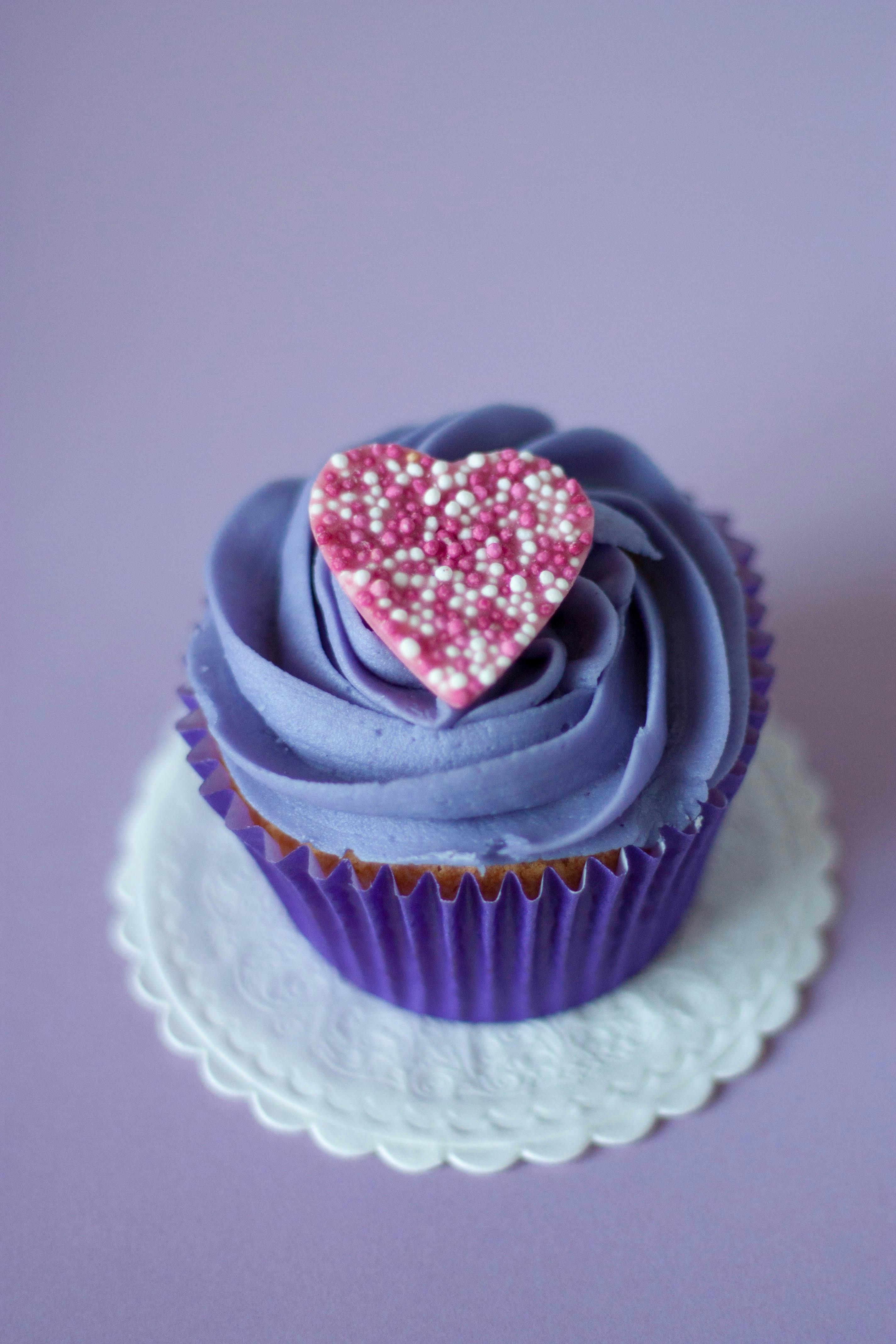
To complete this exercise I used Canva to find borders that will enhance the image of the cupcake. I played on the cupcake's swirled icing, heart shaped decoration and its' general shape to find corresponding frames. I also incorporated colors from the cupcake into two of the borders (color echo) to try to enhance the image. This activity taught me that something so simple (border) can make a big difference in how a viewer sees the image. It is yet another component that I've learned and I find it so interesting to see that just by tweaking the "little details" it can make a big difference. 


MMP Project Proposal

MMP Project Proposal

Background
When I student taught last semester, I noticed that my cooperating teachers really valued formatively assessing their students. We would take anecdotal notes, and try to track their progress from the start of one unit through the next. We would also incorporate various games/activities (ex: carousel and jeopardy) to see whether or not we should move on from a topic or spend another day discussing and reviewing. What I did notice was that the teachers that I was with did not regularly use technology to formatively assess, but instead used traditional methods that often led to missing papers and slight disorganization. This is what gives me the idea for my project as I think using technology and the various resources you can find online will make these assessments/tracking progress much easier.  

Purpose/Goals
The goal of my multimedia project is to provide resources to elementary educators about ways they can use technology to formatively assess their students.

Summary
This multimedia project focuses on the topic of formative assessments in the elementary setting. I am trying to communicate the message that using formative assessments throughout the year is important in the classroom, and if teachers use technology to aid them in that task, it makes the process much more organized and effective. My project will teach educators about the various resources and show examples of how technology can be integrated in assessing elementary students. I hope to also incorporate multimedia in the way this topic will be presented through the use of graphics, video, and audio.

Audience
This project is designed to inform elementary educators. When designing instruction for them, it is important to note that they are busy and fast paced people who need tips and tricks that won’t take up much time to learn. Prior knowledge and skills expected from this audience include knowing how to operate a laptop and use the internet. They should also have an email account in which they can use to sign up for various resource should they choose to.  In the end, I would want to know if this was an effective project and/or if it was of any help to this audience. In order to find that out, I would want to have them review my presentation or leave feedback which would be collected after it was carried out.  

Overview of Instructional Plan
Instruction of this project will be carried out through the form of a website (ex: Adobe Spark page) which will include all of the resources they might need. I am aiming to include moving media (an introductory video, and tutorials on how to use resources) on the page, as well as still media for design purposes.  

Learning Objectives
  • The audience will understand how to use technology to formatively assess their students.
  • The audience will learn how integrating multimedia and technology will be beneficial to their instruction
  • The audience will learn how to use various resources effectively and quickly.

I will use multimedia to present my information, which will in turn allow the audience to meet the learning objectives. Through multimedia, I will communicate to my audience the various resources available, how to use them, and why it is beneficial to their instruction. I will then evaluate my instruction by asking the audience to complete an online Google feedback form, which will tell me whether or not the objectives have been met.

Technological Tool(s)
At this time, the tools that I will be using to create this project include Adobe Spark and Google Platform. I will also be using Vocaroo to add sound/music to my page. I may also want to include a screencasting program and/or other moving media program to take my project one step further. These tools are most appropriate for my project because I am aiming to link it all together to create one singular website page that has all of the information necessary. Adobe Spark in particular is one website that I had evaluated (and really liked) for the MDMC. It has three main functions of creating graphics, pages, and video which makes it the ultimate Web 2.0 tool.

Learning Theories/Principles
When designing my project, I have to keep in mind to make it not cluttered or distracting. Based on my own learning experiences, I find that when things are simple and straightforward, it’s easier to take in information and learn from it. I also think that by showing different examples and graphics, it is easier to comprehend and stay engaged. When creating my final project, I want to keep in mind that 21st Century skills should be included. I will aim to include a comment area to increase communication/collaboration, and show ways that the resources I find (for educators to use in the classroom) can lead to student creativity, critical thinking, life and media skills. The 21st Century skills will be embedded through the resources and will be explained throughout the website.

Timeline
Projected “due” dates:
2/24 - Research topic thoroughly and create an outline of the important points that need to be kept in mind
3/3 - Start designing the website/Adobe Spark page by creating its general layout. At this point be very familiar with the tool. Play around and learn about the other multimedia tools that will be used on the page as well.
3/10 - Fill in some of the page outline with graphics, text, and content (resources)
3/24 - Start creating screencasts and adding in moving/audio media.
3/31 - Finish adding screencasts/multimedia
4/7 - Edit website according to peer feedback.
4/14 - Insert last minute details and touches. Website should be completed in all of its entirety.

Friday, February 10, 2017

Wednesday, February 8, 2017

Blog #4

Word Portraits Exercise
Design Basic Index p. 241 


This activity was one that I personally enjoyed doing. Previous to completing this exercise, I had always loved fonts and the fact that there was so many different ones to choose from. When I was younger, I played with the Word Art function in MS Word a lot and just for fun. I even managed to figure out how to download different fonts as well.

Present day, I don't play around with fonts as often but I found that choosing 12 different fonts for this activity was the "easy" part and finding corresponding or contradicting words to come up with was a much harder task. I used Google Docs to complete this assignment because I liked the user friendly functions and wide range of fonts the platform had to offer. After completing this activity, it was really interesting to see how much of an impact fonts can have on tone/emotions. Fonts can either allude to the meaning that the text is trying to convey or do the opposite which can cause confusion on what the text is communicating. I've learned that fonts can and will make a difference in what you're trying to communicate via text which is important to keep in mind the next time I am making a graphic design.


Textural Composition
Design Basic Index p. 135
This activity was extremely challenging for me. I have never used a Vector-based software, nor did I even know what a vector was prior to reading about it in the Design Basic Index. After downloading Inkscape, a free vector creating software, I spent hours watching youtube videos and tinkering with the program before I even figured out how to create a heart shape (two circles and a square, in case you were wondering).

After I created a few shapes, I decided to complete the textural composition activity and stick with the heart shape (and theme) since Valentine's Day is coming up. Huge disclaimer here because even after "completing" the activity, I don't think I did everything quite right. The wording of the activity's instructions were confusing to me, especially when it mentioned to "arrange these copies around the central image in a tight though freely structured manner". Those two words/phrases seem contradictory but nonetheless I interpreted it the best I could and came up with this unique arrangement.

I enjoyed finding "textures" to place inside the shapes and while it was a bit tedious, it was fun to specifically find Valentine's related ones. Within this graphic, there are a combination of "textures" (through photos) and patterns (visual texture) that fill the spaces that were previously a solid black. These specific textures in combination with the shape, contribute to the theme I was trying to communicate. From this activity, I've learned that textures are much like fonts in that they can elicit certain feelings/emotions, which can either aid or hinder the clarity of the message the creator is trying to get across. I've also learned that creating graphics from scratch is much harder than I thought. There are so many options on how to adjust a simple shape (on Inkscape at least) and the amount of different shapes that can be created takes much more than a simple drag and drop. I definitely have a newfound appreciation for those who are graphic designers.


References: 

Krause, J. (2004). Design Basics Index. Cincinnati, OH: How Design Books.

https://inkscape.org/en/

Friday, February 3, 2017

Blog #3


Example of Good/Bad Design & Commentary on 10 Rules of Design

Website in question:  http://www.suzannecollinsbooks.com/

I chose to comment on Suzanne Collin's website. For those of you who don't know, Suzanne Collins is the writer of the hugely popular series The Hunger Games. She had written a trilogy of books all of which sold millions of copies around the world. Her books were then adapted into movie form which were also extremely popular. When I came across her website, I was shocked to see that it was in this state. At first glance, it was not appealing at all and everything was scattered around the web page. For someone who was so successful and well known, I was expecting her website to be put together and visually appealing. Now let's analyze the website using the book White Space is Not Your Enemy, particularly the "layout sins" located in Chapter 4. 

1. Things that Blink. Incessantly. 
This website doesn't necessarily have blinking visuals in it, however it does have an unappealing lined header which can seem like blinking is going on when you scroll down the page. 

2. Warped Photos
This may be one of the few layout sins that this website doesn't break. The photos on this website are all the right proportions with no warped or stretched photos. While it does have photos of many different sizes seemingly all over the place, they are all left as is and does not seem to be altered at all. 

3. Naked Photos
Because of the website having a plain white background (with the occasional pastel orange), all of the photos on this site do not need to have a border (except maybe the first picture on the webpage) . The colors in the photos contrast enough for the website to not commit this "layout sin". 

4. Bulky Borders and Boxes
This website has one really long bulky orange side bar that showcases the author's reviews and related links. In White Space is Not Your Enemy, "borders and boxes are like fences. they communicate stop... and call attention to themselves". This long orange rectangle really draws the eye away from the main content of the page without effectively communicating what is necessary. 

5. Cheated Margins
Throughout the main web page and the accompanying sub pages, the margins are all over the place. White space is present, but mostly on the left side. Margins are cheated throughout the site. There is no balance and instead I get a message of disorganization before taking the time to read the main message that author is trying to send.  

6. Centering Everything
This website centers (or tries to) everything. All of the main content on the home page occurs in the single middle column of the page. Similarly, if you click the "interview" and "biography" section, the content on that page are all located in the middle. 

7. Corners and Clutter
There's not so much in the corners as they are clutter. Nothing seems to be aligned in a way that is aesthetically pleasing. On the main page, there is a small box of information on the left corner and right corner as well as top, off centered middle, and bottom. Also, by centering most everything, clutter is also created because there is no "symmetrical balance". 

9. Busy Backgrounds
This website design actually does not break this layout sin. There is no busy background because the background is a plain white color. 

10. Tacky Type Emphasis
For the most part, there is limited tacky type except for the review column on the right side of the page. The author made her book titles bolded, blue font color, and underlined when you put your cursor on it. In this case, I don't think that is extremely terrible because the author wants to showcase her books and send a message that if you click it, you can read more about what the particular book is about. 
12. Windows and Orphans (skipped 11 because there are no bullet points)
On the right side of the main web page, under the "selected works" section, there are many featured reviews of Collins' books. While the layout of the reviews start off great, the text seems to indent after each one, moving the text closer and closer to the right side of the page. While this doesn't create "orphans" of letters as mentioned in the book, it does create orphans of words where there is a singular line with a singular word (see photo on the right). 

Overall this website committed many layout sins, however it was not as bad as it could have been if there were a plethora of information randomly spread about. While this website is not very aesthetically pleasing, there is a minimalistic style to it. Perhaps the author did not want to include much information on her website. This website example also shows that she is able to better communicate using a traditional method of literacy (through her books) than multimedia literacy which is interesting because it shows that they are not interchangeable. 


Design Basic Index Harmony Workshop Exercise (created using Canva)
Visual Echo p. 58

Echo Through Style
Echo Through Content
Echo Through Typography


Design Basic Index Loosened Alignment Exercise (created using Canva)
Multi-Image Ad Composition p.87
Highly Structured
Loosely Structured


Resources:

Golombisky, K., & Hagen, R. (2010). White space is not your enemy: a beginner's guide to communicating visually through graphic, web & multimedia design. Amsterdam: Focal Press/Elsevier.

Krause, J. (2004). Design Basics Index. Cincinnati, OH: How Design Books.

http://www.suzannecollinsbooks.com/index.htm

Images taken from https://stocksnap.io/ & https://www.pexels.com/


Thursday, February 2, 2017

Discussion Post #2

After watching the interview with Margaret Kiernan and viewing the required readings, I've learned a lot about what makes a good design and what doesn't. I personally have never created anything using multimedia (except the occasional design on MS Paint during elementary school computer class) but if I had to, it would probably unintentionally incorporate all of the "layout sins" in Chapter 4 of White Space is Not Your Enemy.

Now, after learning about what makes an effective and aesthetically pleasing graphic design, I hope to take this knowledge and apply it to my Multimedia Montage Project (MMP). For the upcoming MMP, I plan on incorporating what I learned about what makes a great design in my final composition that will be composed of all of the information. For my project, I wanted to focus on the idea of technology integrated formative assessments, which I hope to research/learn about and comprise into a valuable resources for teachers. Keeping this in mind, I would ideally aim to create either a website or PD that is not cluttered/busy but streamlined.


One of the things that really resonated with me from the interview is when Margaret Kiernan mentioned that you need to know who the audience is and what the purpose of the design should be before you can communicate it. This makes sense in the way that instead of focusing on the design first (ex: making things look pretty with various fonts), you need to know who you're catering to and why and revolve the design around that knowledge. On the Design Rules of Thumb website, I was surprised to see that "audience" section has a table with font guidelines based on age. This makes so much sense, yet I haven't previously thought about it from a design perspective and that younger students need bigger print in order to "distinguish characters and comprehend words".

This interview and the readings for this week made me realize that I previously didn't quite understand the reasoning behind my visual literacy. When I view different products of graphic design, I can tell when there is too much going on which makes me wonder "what is the point of this?" but when I look at a better design that is easy to read and understand I don't normally think about how or why the creator made it like that. I suppose this means that I am not entirely visually literate as I never took the time to analyze designs but instead just take in the message it was communicating to me.

I believe that this knowledge of great design components will affect my teaching of visual/multimedia literacy because it will give me the opportunity to ask my future students why is this design good or bad? What makes a design good (or bad) and how can it be improved? What is the message this design is trying to portray? These are questions that can definitely provoke student thinking and get them to really analyze what they're seeing and increase their visual/multimedia literacy.

Overall from this week's discussion post assignment, I think it's important to "remember that you are not designing for yourself, you are designing to communicate to others. Take the audiences needs, skills, and abilities, into account when developing your design." (Design Rules of Thumb, Doug & Melissa) because in the end, it's all about the message. 

Resources:
D., & M. (n.d.). Design Rules of Thumb. Retrieved February 02, 2017, from http://www.writedesignonline.com/resources/design/rules/index.html

Golombisky, K., & Hagen, R. (2010). White space is not your enemy: a beginner's guide to communicating visually through graphic, web & multimedia design. Amsterdam: Focal Press/Elsevier.

M. (2011, September 18). Retrieved February 02, 2017, from https://www.youtube.com/watch?v=KrbhxrNlc1U

https://s-media-cache-ak0.pinimg.com/564x/8c/1a/81/8c1a81924f003a112d1eb9dd8e521567.jpg


Friday, January 27, 2017

Blog #2 Multimedia Montage Project Step 1


As I started to think about the Multimedia Montage Project, I became a little bit overwhelmed yet excited. I am looking forward to joining various communities and learning about new technology tools and ideas that I have yet to hear of. At first, I didn't know where to start. After reading about the ADDIE Model, I tried to start with the "Analysis" section and really think about what topic I wanted to pursue. After thinking about my student teaching experience, as well as the classes that I had taken in the past year, I thought up the idea that I can pursue the topic or "challenge" of assessment. To be more exact, formative assessments in the elementary classroom. Formative assessments are crucial for teachers to track student's progress and understanding, and with the integration of technology and multimedia, it can become a much easier, fun, and organized task.

Finding specific assessment communities turned out to be a daunting task. As I searched through the Google+ communities to find one to join, I ended up going a more general route and found a great group called EdTech. This community has over 48,000 members which leads me to believe that it's a great resource for anything educational technology related. It is an active community where its' members post interesting content from tips to tools and everything in between. This community has a plethora of information, and with the amount of members present that are contributing their knowledge, it will allow me to get an inside look of what really occurs in the classroom and how different technological tools that can be integrated with regular instruction.


Outside of Google+, I am also planning on joining the edutopia community which after using this resource for an assignment for another class, I realized how great of a website it was. This website has many resources for almost any educational topic or question you may have. After looking through the site some more, I also found that they have a lot of content that is focused on technology including discussion boards, videos, lesson plans, and informative articles. I hope to take the information that I learn about assessments through this site and connect it to what I learn about technology.

After going through and exploring different communities, I can relate it to what stuck out with me in the DIY Media reading, particularly "social learning". Learning through interactions (on blogs, wikis, social media, etc..), otherwise known as "social learning" can "contribute to the development of a 'pull' approach to learning...[which] will 'better serve the needs of twenty-first century students'"(Knobel and Lankshear, 2010). Twenty-first century students (such as ourselves in this course), can use these various tools to help them become increasingly "literate" (in Daley's terms).

As someone who does not have as much experience in the classroom as others, I feel like being a part of these communities, which have knowledgable and experienced members, will help me gain more insight on what it really means to be an educator. I hope to be able to participate in these communities and engage/collaborate with others who can help inform my upcoming project.

Resources: 
Hodell, Chuck. (2011). Chapter 3: Instructional systems development and the ADDIE model. In ISD From the Ground Up: A No-Nonsense Approach to Instructional Design (3rd ed.). American Society for Training and Development: Alexandria, VA.

Knobel, M., & Lankshear, C. (2010). DIY media: creating, sharing and learning with new technologies. New York: Peter Lang.

https://www.edutopia.org/sites/all/themes/edutopia/images/logo-print.png
https://lh5.googleusercontent.com/-hTY55-vetc0/AAAAAAAAAAI/AAAAAAAAAB8/niYNGh-rt7Y/photo.jpg
http://www.youth.gov.hk/html/www/en/images/career-and-study/upload-images/it/multimedia-front.jpg