Friday, February 24, 2017

Blog #6

Task 1: Storyboarding the MMP 

After reading the chapter in White Space and watching the videos on Vimeo about Storyboarding, I decided to give it a try. I think this was a great experience because it really helped me visualize and think about how I'm going to organize my project. In the beginning, I was thinking about creating my project on Adobe Spark, but after visualizing it I believe I might have to add a redirect to another website (like a blog) or to another Spark page (see orange box below). As I start to formulate my project, I need to keep that in mind when designing my resources page in particular.

The only reason why I don't want to keep all the resources on the same page (with the information/homepage) is because I don't want the website to be overcrowded and overwhelming. I want this to be a resource that teachers can feel comfortable referring to whenever they want to find new ideas of incorporating technology integrated formative assessment in the classroom.

The rules of design are also important to remember especially because I want this final project to be an effective communicator of the information. One rule that I need to really be aware of include busy backgrounds. Adobe Spark has a glideshow feature that allow users to input various backgrounds behind the text that will make the information seamlessly flow throughout so the choices I make for background should not be more attention grabbing than the information.

I feel as if the format of Adobe Spark does not allow for many of the design rules to be broken, so this storyboard draft attends to many of the rules of design (at least in my opinion as I can see it come to life). It is a user friendly tool that is also design friendly. While this doesn't allow for unlimited creativity, I think that if I decide to go a different route and use a website creator instead, I will have to keep the various rules more in mind.


----

Task 2: Concept in 60 Video


For the 60 second video, I decided to incorporate something I've been doing for the past year or two into the assignment. I've incorporated the videos that I created using the 1 Second Everyday app, and with iMovie I was able to crop a few moments out. As the days go by quickly, it is easy to forget the little things in life so I've created this video primarily for myself to serve as a reflection of the year and how many things have changed. That year in particular has been extremely life changing for me as I started the curriculum for the Rutgers GSE's Five Year Teacher program and became the President of my student organization. There were also many other stressors that had impacted me throughout the year. Although it might not seem like much, creating this video made me realize how much I was able to come out of my "shell" and overcome things that were much bigger me. It also made me notice how many more things I'm grateful for. 

Friday, February 17, 2017

Blog #5

Cropping Exercise
Design Basic Index p.193

I cropped each of the various images below in order to change the focal point of the picture. I wanted the audience to see what was in the picture from a different perspective. By focusing in on details and smaller parts of the picture, you are able to see the image in a new light. To see the bigger picture of the original image, feel free to click on the links located on each of the cropped photos' captions. 

Original Image :
 https://static.pexels.com/photos/36187/pexels-photo.jpg


In this cropped pineapple photo, you can see that the crown of the pineapple is showcased. I wanted to showcase the "crown" because it has varying textures that go beyond the typical prickle of its popular yellow body. I also wanted to focus on the crown because not many will take the time to look at it as they simply cut off and discard that part before eating the highly popular fruit. It's beautiful too! 


Original Image:
https://static.pexels.com/photos/202581/pexels-photo-202581.jpe

In this cropped photo of the bicycle, you will notice that it is only a very small part of the bigger picture. When I first saw this photo, my eye immediately was drawn to the golden bicycle and not the restaurant/bar that it was showcasing. This was why I decided to make my focal point of the picture the bicycle, and really try to see it in more detail. 


After viewing the entire photo, I noticed that there were many interesting elements to the picture. One of the things that my eye shifted to as I was scanning the photo, was the windows and how they looked old yet classic/sophisticated. When I zoomed in, that is also where I noticed the metal detailing as well as the tile design. By making the window the focal point of the photo, the viewer can really appreciate the design of it. 
Original Image:
https://static.pexels.com/photos/36226/pexels-photo.jpg
Original Image:
https://static.pexels.com/photos/56877/padlocks-completed-castles-love-56877.jpeg

In both of the images above (padlocks and flowers), I decided to take a small part of the picture and make it the entire picture. From here, the viewer is able to see details and texture of the composition. In the padlock photo, I looked through the entire image and found that this was one of the only spots where the words/names were easy to read. I wanted to zoom in on this section because it emits feelings of love and sets the tone for the audience. In the flowers photo, I wanted to accentuate the soft feelings of the petals and the idea that since it is so close, you can almost smell it.


Original Image:
https://static.pexels.com/photos/110055/pexels-photo-110055.jpeg
 In this last photo of the man, I wanted to shift the focal point from the center mural and make the audience wonder about the mysterious person. Why is he looking through his bag? What could be in it? What does he even look like? It's now a picture full of questions and it is not as straightforward as it could've been perceived previously. The message being communicated is now a little unclear and would need more analysis to come to a conclusion. 

----

Color Echo Exercise
Design Basic Index p.219


 I thought this exercise was kind of fun and interesting.
I used Adobe Photoshop to complete these color echo fliers and surprisingly it didn't take me as long to learn as Inkscape (Vector software from last week). What I was also surprised of is that not all colors look good together, even if they are in the focal point of the picture together. It took me a little bit to play around with the different color layers and see what could go in the background and what could be for the font. This exercise taught me that even though you use the same/similar colors throughout different graphics, it can still create many various (but complementary) unique products. 


*Note: The white borders around the pictures are not not supposed to be there, it is just there because of my blog theme.


----

Border Variation Exercise
Design Basic Index p. 197
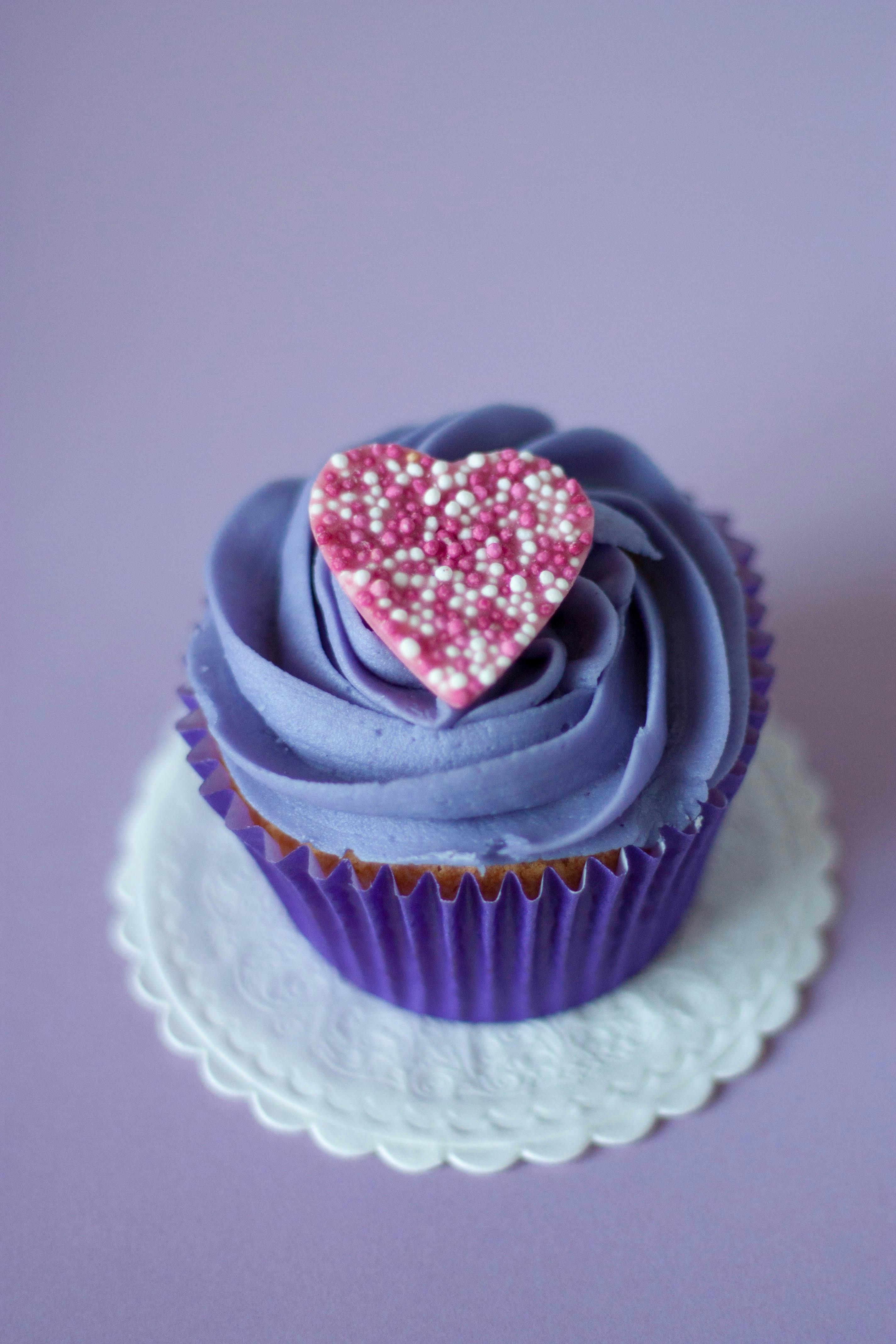
Original Image: https://static.pexels.com/photos/8882/love-heart-purple-dessert.jpg


To complete this exercise I used Canva to find borders that will enhance the image of the cupcake. I played on the cupcake's swirled icing, heart shaped decoration and its' general shape to find corresponding frames. I also incorporated colors from the cupcake into two of the borders (color echo) to try to enhance the image. This activity taught me that something so simple (border) can make a big difference in how a viewer sees the image. It is yet another component that I've learned and I find it so interesting to see that just by tweaking the "little details" it can make a big difference. 


MMP Project Proposal

MMP Project Proposal

Background
When I student taught last semester, I noticed that my cooperating teachers really valued formatively assessing their students. We would take anecdotal notes, and try to track their progress from the start of one unit through the next. We would also incorporate various games/activities (ex: carousel and jeopardy) to see whether or not we should move on from a topic or spend another day discussing and reviewing. What I did notice was that the teachers that I was with did not regularly use technology to formatively assess, but instead used traditional methods that often led to missing papers and slight disorganization. This is what gives me the idea for my project as I think using technology and the various resources you can find online will make these assessments/tracking progress much easier.  

Purpose/Goals
The goal of my multimedia project is to provide resources to elementary educators about ways they can use technology to formatively assess their students.

Summary
This multimedia project focuses on the topic of formative assessments in the elementary setting. I am trying to communicate the message that using formative assessments throughout the year is important in the classroom, and if teachers use technology to aid them in that task, it makes the process much more organized and effective. My project will teach educators about the various resources and show examples of how technology can be integrated in assessing elementary students. I hope to also incorporate multimedia in the way this topic will be presented through the use of graphics, video, and audio.

Audience
This project is designed to inform elementary educators. When designing instruction for them, it is important to note that they are busy and fast paced people who need tips and tricks that won’t take up much time to learn. Prior knowledge and skills expected from this audience include knowing how to operate a laptop and use the internet. They should also have an email account in which they can use to sign up for various resource should they choose to.  In the end, I would want to know if this was an effective project and/or if it was of any help to this audience. In order to find that out, I would want to have them review my presentation or leave feedback which would be collected after it was carried out.  

Overview of Instructional Plan
Instruction of this project will be carried out through the form of a website (ex: Adobe Spark page) which will include all of the resources they might need. I am aiming to include moving media (an introductory video, and tutorials on how to use resources) on the page, as well as still media for design purposes.  

Learning Objectives
  • The audience will understand how to use technology to formatively assess their students.
  • The audience will learn how integrating multimedia and technology will be beneficial to their instruction
  • The audience will learn how to use various resources effectively and quickly.

I will use multimedia to present my information, which will in turn allow the audience to meet the learning objectives. Through multimedia, I will communicate to my audience the various resources available, how to use them, and why it is beneficial to their instruction. I will then evaluate my instruction by asking the audience to complete an online Google feedback form, which will tell me whether or not the objectives have been met.

Technological Tool(s)
At this time, the tools that I will be using to create this project include Adobe Spark and Google Platform. I will also be using Vocaroo to add sound/music to my page. I may also want to include a screencasting program and/or other moving media program to take my project one step further. These tools are most appropriate for my project because I am aiming to link it all together to create one singular website page that has all of the information necessary. Adobe Spark in particular is one website that I had evaluated (and really liked) for the MDMC. It has three main functions of creating graphics, pages, and video which makes it the ultimate Web 2.0 tool.

Learning Theories/Principles
When designing my project, I have to keep in mind to make it not cluttered or distracting. Based on my own learning experiences, I find that when things are simple and straightforward, it’s easier to take in information and learn from it. I also think that by showing different examples and graphics, it is easier to comprehend and stay engaged. When creating my final project, I want to keep in mind that 21st Century skills should be included. I will aim to include a comment area to increase communication/collaboration, and show ways that the resources I find (for educators to use in the classroom) can lead to student creativity, critical thinking, life and media skills. The 21st Century skills will be embedded through the resources and will be explained throughout the website.

Timeline
Projected “due” dates:
2/24 - Research topic thoroughly and create an outline of the important points that need to be kept in mind
3/3 - Start designing the website/Adobe Spark page by creating its general layout. At this point be very familiar with the tool. Play around and learn about the other multimedia tools that will be used on the page as well.
3/10 - Fill in some of the page outline with graphics, text, and content (resources)
3/24 - Start creating screencasts and adding in moving/audio media.
3/31 - Finish adding screencasts/multimedia
4/7 - Edit website according to peer feedback.
4/14 - Insert last minute details and touches. Website should be completed in all of its entirety.

Friday, February 10, 2017

Wednesday, February 8, 2017

Blog #4

Word Portraits Exercise
Design Basic Index p. 241 


This activity was one that I personally enjoyed doing. Previous to completing this exercise, I had always loved fonts and the fact that there was so many different ones to choose from. When I was younger, I played with the Word Art function in MS Word a lot and just for fun. I even managed to figure out how to download different fonts as well.

Present day, I don't play around with fonts as often but I found that choosing 12 different fonts for this activity was the "easy" part and finding corresponding or contradicting words to come up with was a much harder task. I used Google Docs to complete this assignment because I liked the user friendly functions and wide range of fonts the platform had to offer. After completing this activity, it was really interesting to see how much of an impact fonts can have on tone/emotions. Fonts can either allude to the meaning that the text is trying to convey or do the opposite which can cause confusion on what the text is communicating. I've learned that fonts can and will make a difference in what you're trying to communicate via text which is important to keep in mind the next time I am making a graphic design.


Textural Composition
Design Basic Index p. 135
This activity was extremely challenging for me. I have never used a Vector-based software, nor did I even know what a vector was prior to reading about it in the Design Basic Index. After downloading Inkscape, a free vector creating software, I spent hours watching youtube videos and tinkering with the program before I even figured out how to create a heart shape (two circles and a square, in case you were wondering).

After I created a few shapes, I decided to complete the textural composition activity and stick with the heart shape (and theme) since Valentine's Day is coming up. Huge disclaimer here because even after "completing" the activity, I don't think I did everything quite right. The wording of the activity's instructions were confusing to me, especially when it mentioned to "arrange these copies around the central image in a tight though freely structured manner". Those two words/phrases seem contradictory but nonetheless I interpreted it the best I could and came up with this unique arrangement.

I enjoyed finding "textures" to place inside the shapes and while it was a bit tedious, it was fun to specifically find Valentine's related ones. Within this graphic, there are a combination of "textures" (through photos) and patterns (visual texture) that fill the spaces that were previously a solid black. These specific textures in combination with the shape, contribute to the theme I was trying to communicate. From this activity, I've learned that textures are much like fonts in that they can elicit certain feelings/emotions, which can either aid or hinder the clarity of the message the creator is trying to get across. I've also learned that creating graphics from scratch is much harder than I thought. There are so many options on how to adjust a simple shape (on Inkscape at least) and the amount of different shapes that can be created takes much more than a simple drag and drop. I definitely have a newfound appreciation for those who are graphic designers.


References: 

Krause, J. (2004). Design Basics Index. Cincinnati, OH: How Design Books.

https://inkscape.org/en/

Friday, February 3, 2017

Blog #3


Example of Good/Bad Design & Commentary on 10 Rules of Design

Website in question:  http://www.suzannecollinsbooks.com/

I chose to comment on Suzanne Collin's website. For those of you who don't know, Suzanne Collins is the writer of the hugely popular series The Hunger Games. She had written a trilogy of books all of which sold millions of copies around the world. Her books were then adapted into movie form which were also extremely popular. When I came across her website, I was shocked to see that it was in this state. At first glance, it was not appealing at all and everything was scattered around the web page. For someone who was so successful and well known, I was expecting her website to be put together and visually appealing. Now let's analyze the website using the book White Space is Not Your Enemy, particularly the "layout sins" located in Chapter 4. 

1. Things that Blink. Incessantly. 
This website doesn't necessarily have blinking visuals in it, however it does have an unappealing lined header which can seem like blinking is going on when you scroll down the page. 

2. Warped Photos
This may be one of the few layout sins that this website doesn't break. The photos on this website are all the right proportions with no warped or stretched photos. While it does have photos of many different sizes seemingly all over the place, they are all left as is and does not seem to be altered at all. 

3. Naked Photos
Because of the website having a plain white background (with the occasional pastel orange), all of the photos on this site do not need to have a border (except maybe the first picture on the webpage) . The colors in the photos contrast enough for the website to not commit this "layout sin". 

4. Bulky Borders and Boxes
This website has one really long bulky orange side bar that showcases the author's reviews and related links. In White Space is Not Your Enemy, "borders and boxes are like fences. they communicate stop... and call attention to themselves". This long orange rectangle really draws the eye away from the main content of the page without effectively communicating what is necessary. 

5. Cheated Margins
Throughout the main web page and the accompanying sub pages, the margins are all over the place. White space is present, but mostly on the left side. Margins are cheated throughout the site. There is no balance and instead I get a message of disorganization before taking the time to read the main message that author is trying to send.  

6. Centering Everything
This website centers (or tries to) everything. All of the main content on the home page occurs in the single middle column of the page. Similarly, if you click the "interview" and "biography" section, the content on that page are all located in the middle. 

7. Corners and Clutter
There's not so much in the corners as they are clutter. Nothing seems to be aligned in a way that is aesthetically pleasing. On the main page, there is a small box of information on the left corner and right corner as well as top, off centered middle, and bottom. Also, by centering most everything, clutter is also created because there is no "symmetrical balance". 

9. Busy Backgrounds
This website design actually does not break this layout sin. There is no busy background because the background is a plain white color. 

10. Tacky Type Emphasis
For the most part, there is limited tacky type except for the review column on the right side of the page. The author made her book titles bolded, blue font color, and underlined when you put your cursor on it. In this case, I don't think that is extremely terrible because the author wants to showcase her books and send a message that if you click it, you can read more about what the particular book is about. 
12. Windows and Orphans (skipped 11 because there are no bullet points)
On the right side of the main web page, under the "selected works" section, there are many featured reviews of Collins' books. While the layout of the reviews start off great, the text seems to indent after each one, moving the text closer and closer to the right side of the page. While this doesn't create "orphans" of letters as mentioned in the book, it does create orphans of words where there is a singular line with a singular word (see photo on the right). 

Overall this website committed many layout sins, however it was not as bad as it could have been if there were a plethora of information randomly spread about. While this website is not very aesthetically pleasing, there is a minimalistic style to it. Perhaps the author did not want to include much information on her website. This website example also shows that she is able to better communicate using a traditional method of literacy (through her books) than multimedia literacy which is interesting because it shows that they are not interchangeable. 


Design Basic Index Harmony Workshop Exercise (created using Canva)
Visual Echo p. 58

Echo Through Style
Echo Through Content
Echo Through Typography


Design Basic Index Loosened Alignment Exercise (created using Canva)
Multi-Image Ad Composition p.87
Highly Structured
Loosely Structured


Resources:

Golombisky, K., & Hagen, R. (2010). White space is not your enemy: a beginner's guide to communicating visually through graphic, web & multimedia design. Amsterdam: Focal Press/Elsevier.

Krause, J. (2004). Design Basics Index. Cincinnati, OH: How Design Books.

http://www.suzannecollinsbooks.com/index.htm

Images taken from https://stocksnap.io/ & https://www.pexels.com/


Thursday, February 2, 2017

Discussion Post #2

After watching the interview with Margaret Kiernan and viewing the required readings, I've learned a lot about what makes a good design and what doesn't. I personally have never created anything using multimedia (except the occasional design on MS Paint during elementary school computer class) but if I had to, it would probably unintentionally incorporate all of the "layout sins" in Chapter 4 of White Space is Not Your Enemy.

Now, after learning about what makes an effective and aesthetically pleasing graphic design, I hope to take this knowledge and apply it to my Multimedia Montage Project (MMP). For the upcoming MMP, I plan on incorporating what I learned about what makes a great design in my final composition that will be composed of all of the information. For my project, I wanted to focus on the idea of technology integrated formative assessments, which I hope to research/learn about and comprise into a valuable resources for teachers. Keeping this in mind, I would ideally aim to create either a website or PD that is not cluttered/busy but streamlined.


One of the things that really resonated with me from the interview is when Margaret Kiernan mentioned that you need to know who the audience is and what the purpose of the design should be before you can communicate it. This makes sense in the way that instead of focusing on the design first (ex: making things look pretty with various fonts), you need to know who you're catering to and why and revolve the design around that knowledge. On the Design Rules of Thumb website, I was surprised to see that "audience" section has a table with font guidelines based on age. This makes so much sense, yet I haven't previously thought about it from a design perspective and that younger students need bigger print in order to "distinguish characters and comprehend words".

This interview and the readings for this week made me realize that I previously didn't quite understand the reasoning behind my visual literacy. When I view different products of graphic design, I can tell when there is too much going on which makes me wonder "what is the point of this?" but when I look at a better design that is easy to read and understand I don't normally think about how or why the creator made it like that. I suppose this means that I am not entirely visually literate as I never took the time to analyze designs but instead just take in the message it was communicating to me.

I believe that this knowledge of great design components will affect my teaching of visual/multimedia literacy because it will give me the opportunity to ask my future students why is this design good or bad? What makes a design good (or bad) and how can it be improved? What is the message this design is trying to portray? These are questions that can definitely provoke student thinking and get them to really analyze what they're seeing and increase their visual/multimedia literacy.

Overall from this week's discussion post assignment, I think it's important to "remember that you are not designing for yourself, you are designing to communicate to others. Take the audiences needs, skills, and abilities, into account when developing your design." (Design Rules of Thumb, Doug & Melissa) because in the end, it's all about the message. 

Resources:
D., & M. (n.d.). Design Rules of Thumb. Retrieved February 02, 2017, from http://www.writedesignonline.com/resources/design/rules/index.html

Golombisky, K., & Hagen, R. (2010). White space is not your enemy: a beginner's guide to communicating visually through graphic, web & multimedia design. Amsterdam: Focal Press/Elsevier.

M. (2011, September 18). Retrieved February 02, 2017, from https://www.youtube.com/watch?v=KrbhxrNlc1U

https://s-media-cache-ak0.pinimg.com/564x/8c/1a/81/8c1a81924f003a112d1eb9dd8e521567.jpg